

Ever glanced at your phone and suddenly seen “SOS” glaring at you from the top of the screen? Cue the panic, right? You’re not alone.
This cryptic message has thrown countless smartphone users into confusion, especially when everything else on their device seems to be working fine. So, let’s unpack this-what does “SOS” really mean on your phone, why is it happening, and how can you fix it fast?
Whether you’re using an iPhone, an Android device, or just trying to get your phone working again, this guide walks you through the answers you need-without the tech jargon or the runaround.
First, What Does “SOS” Mean on a Phone?
Let’s clear the air: when your phone says “SOS” or “SOS Only,” it’s not trying to scare you-though it definitely feels that way.
This message doesn’t mean your phone is broken or hacked. It simply means your phone isn’t connected to your usual mobile network. But here’s the catch-it can still make emergency calls.
In other words:
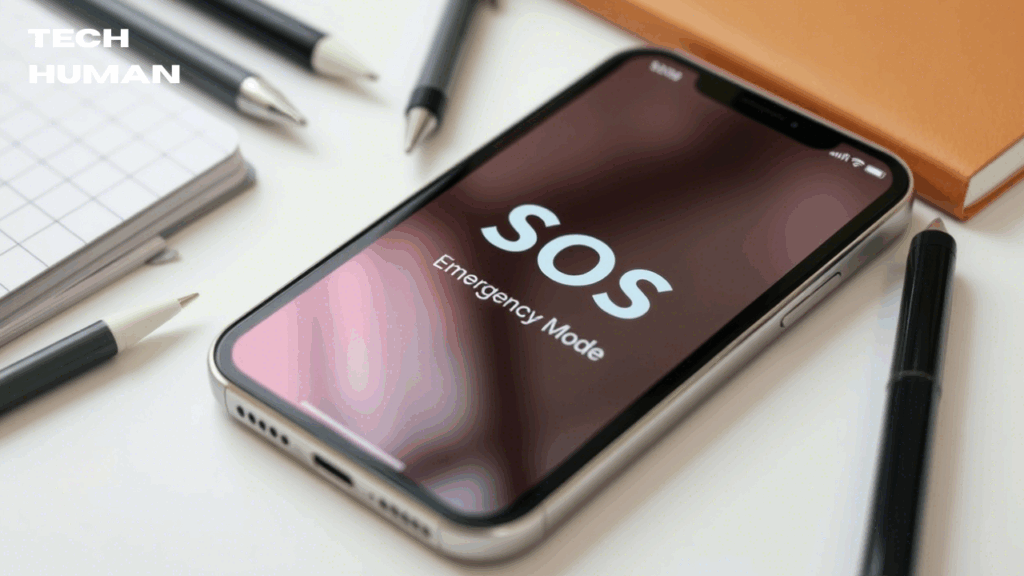
“SOS” mode = no regular cellular service, but emergency calling is still available.
You’ll typically see this on iPhones, especially newer models (like iPhone 14 or 15), but Android users might notice a similar message like “Emergency Calls Only.”
Why Is My Phone Showing “SOS”?
If your phone has flipped into SOS mode, there’s usually a pretty straightforward reason behind it. Here are the most common causes:
Poor Cellular Signal
You’re in a basement. On a plane. Stuck in an elevator.
Any place where cell towers can’t reach you = SOS land.
Carrier Network Outage
Even the big guys mess up sometimes.
- In February 2024, a massive AT&T outage left millions seeing “SOS.”
- In September 2024, Verizon experienced a similar blackout.
These outages can happen without warning and last from minutes to hours.
SIM Card Issues
Your SIM card might be:
- Not inserted properly
- Damaged
- Locked or deactivated
Without a working SIM, your phone can’t connect to your carrier-even if you’re standing right next to a cell tower.
Software Bugs or Updates
iOS updates (like iOS 18) can bring new features-but also fresh bugs. Sometimes, your phone may glitch into SOS mode after a major update.
Roaming or International Travel
Traveling abroad? If your phone isn’t set up for international roaming, or your carrier doesn’t have agreements with local providers, hello SOS.
How to Fix “SOS” on Your Phone (Step-by-Step)
Here’s what to try before you call your carrier or head to the Apple Store.
Toggle Airplane Mode
- Swipe into Control Center
- Turn on Airplane Mode
- Wait 15–30 seconds
- Turn it off again
This resets your connection to local towers.
Restart Your Phone
Yes, it’s basic. But restarting clears up weird network glitches more often than you’d think.
Check Carrier Settings
Go to:
Settings > General > About
If an update pops up, install it.
Reset Network Settings
Settings > General > Transfer or Reset iPhone > Reset > Reset Network Settings
This will erase saved Wi-Fi passwords, so have those handy.
Inspect or Reseat the SIM Card
- Power off your phone
- Remove the SIM using a paperclip or SIM tool
- Gently clean and reinsert it
Still seeing “SOS”? Try popping the SIM into another device to test.
Update iOS or Android
Go to Settings > Software Update
Running outdated software can cause compatibility issues with newer network protocols.
Can I Still Use My Phone in “SOS” Mode?
Yes and no.
You can’t:
- Send iMessages
- Use mobile data
- Call friends and family (unless over Wi-Fi)
You can:
- Dial emergency services (911, 112, etc.)
- On iPhone 14 and newer, send emergency satellite messages (if supported and activated)
SOS Only with Full Bars? That’s Extra Frustrating
Ever seen “SOS Only” but your phone shows full signal bars? Here’s why that happens:
Those bars may reflect nearby networks, not your own carrier. Your phone’s catching a signal-but not from your provider. It’s basically a party you’re not invited to.
Also Read: Pedro Paulo Business Consultant
When Should You Call Your Carrier?
If you’ve tried everything above and your phone is still stuck in SOS mode, it’s time to call in the pros.
Here’s when to escalate:
- You’re the only one in your area with the issue
- You’ve replaced the SIM, reset settings, and updated software
- Your phone works on Wi-Fi but not cellular
Your carrier can check:
- Local tower status
- SIM provisioning
- Account blocks or suspensions
Traveling? Here’s How to Avoid the SOS Trap
Planning an international trip? These tips will save you:
- Enable roaming before you fly
- Buy a travel SIM or eSIM
- Check local carrier compatibility
- Use Wi-Fi calling when available
Android Users: SOS Looks Different
On Android, you might not see “SOS” but instead see:
- “Emergency Calls Only”
- “No Service”
Same problem, different name. Androids don’t use the exact same terminology as iPhones, but the fixes are similar.
Extra Tips to Prevent SOS in the Future
Want to avoid seeing “SOS” ever again? Do this:
- Keep your software up to date
- Use a reliable phone case (some metal ones interfere with signals)
- Avoid buying random SIM cards overseas
- Enable Wi-Fi Calling as a backup for poor signal areas
- Use a signal booster in rural or weak zones
Real Story: “My iPhone Said SOS-Turns Out It Wasn’t the Phone at All”
Sophia, a college student from Austin, Texas, saw “SOS” on her iPhone 15 one morning. She restarted her phone, removed the SIM, even reset the network settings-nothing.
Turns out? Her carrier had an unannounced tower maintenance in her area. A quick call to support saved hours of frustration.
Moral of the story? Sometimes, it’s not you—it’s them.
Final Thoughts: Don’t Panic-“SOS” Isn’t a Death Sentence for Your Phone
Seeing “SOS” on your phone can be unsettling, but now you know:
- It’s a connectivity issue, not a broken phone
- You can still call for help in an emergency
- Fixes are usually simple and fast
So, the next time your phone says SOS, take a breath, follow these steps, and get back online like a pro.
TL;DR: Why Does My Phone Say SOS?
- It means your phone can’t reach your regular network, but you can still make emergency calls.
- It’s often caused by poor signal, SIM issues, carrier outages, or software glitches.
- Fix it by toggling Airplane Mode, restarting, resetting network settings, or updating your phone.
- Still stuck? Contact your carrier for deeper troubleshooting.
Pro Tip: Save this guide in case it happens again-or share it with someone who’s freaking out over “SOS” on their screen.